Webflow Installation Guide: Getting Started
Last updated 03/20/2026
Bread & Butter code snippets can be added to your Webflow website using Custom Code in the header:

Adding the code snippets to the Custom Code head tag applies them to every page on your website.
Getting Started
As a first step, you’ll need to add the Bread & Butter initialization snippet to the head tag. As part of this, you’ll need your App ID. Don’t have an App yet? Create an Account.
This script tag will allow Bread & Butter to start collecting data, and is required for you to add other Bread & Butter functionality to your Webflow website.
Step 1
- On your Webflow Dashboard, click on the 3 dots at the bottom right of your project.
- Then, select Settings.
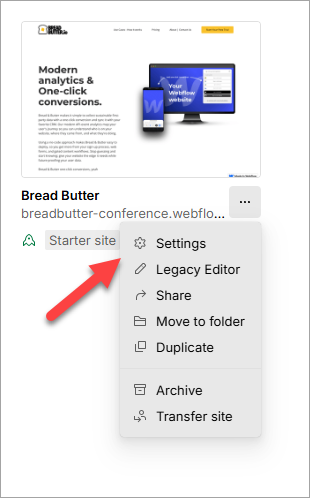
Step 2
Select the Custom Code from the left menu.

Step 3
In the Head Code field, paste in the following script tag:
<script>
window.initBreadButter = function () {
    // Here is your configuration of the BreadButter App.
    BreadButter.configure({
        app_id: "[APP_ID]"
    });
};
(function (d, s, id) { var js, fjs = d.getElementsByTagName(s)[0]; if (d.getElementById(id)) { return; } js = d.createElement(s); js.id = id; js.src = 'https://cdn.breadbutter.io/dist/breadbutter.8.5.0.35.min.js'; fjs.parentNode.insertBefore(js, fjs); }(document, 'script', 'breadbutter-js'));
</script>

Step 4
Then, replace [APP_ID] with your App ID from your Bread & Butter App.
Not sure how to get your App ID? Head to your App Settings page
Then, click on the Advanced Settings tab. Your App ID will be at the top of the page. You'll also see the same code snippet as above, but with your app ID already there. Feel free to copy this into the Webflow Head code section.
Step 5
- Click Save Changes.
- Publish your website, when ready.
Step 6
Congratulations! Your website is now set up for Bread & Butter to start collecting data. Head to your Bread & Butter dashboard to see all of the users visiting your website.
Not seeing any activity? Open up your website in a browser, and see if your visit appears in the Dashboard. If you're still not seeing your activity appear, check the following:
- Ensure that your App ID in the script tag is correct.
- In the App Settings page in Bread & Butter, go to Advanced Settings > Website Domains, and make sure your site's domain is added to the list of website domains.
Step 7
Now you're ready to add tools to your site, to get your visitors to convert: